Drupal9 AMI on Amazon Linux 2
This Drupal9 AMI is running on our LAMP PHP 8 Stack
Web Server
We prepared SSL/TLS so you can access to top page using http:// or https://.
Drupal9 Installation
Once the instance is running, please access your Drupal9 hosting domain or enter the public DNS provided by AWS (IPv4 Public IP) into your browser.
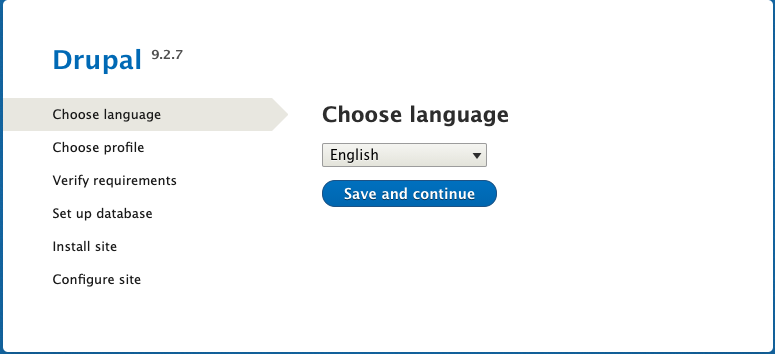
Step 1: Choose language
You will see the Drupal9 application. Chose your language settings.
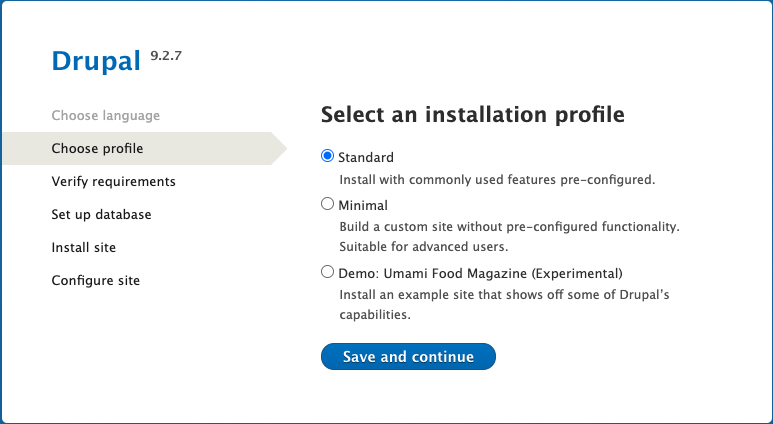
Step 2: Select an Installation profile
Usually to select Standard
Step 3: Database Configuration
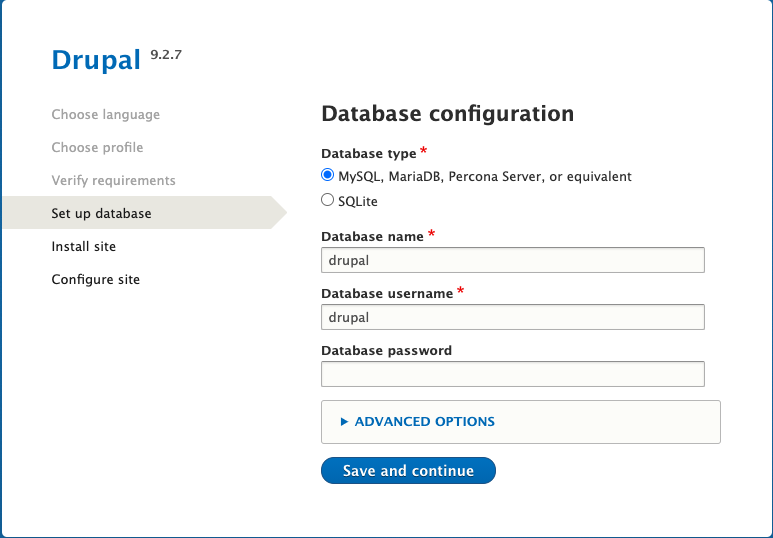
Find database password
You can find the database server password by accessing the System Log in the EC2 management console:
1. Go to the Amazon EC2 console at https://console.aws.amazon.com/ec2/.
2. Chose your Instance and Click on Actions → Monitor and troubleshoot → Get System Log.

3. Get System log as shown below.

You can also SSH into your instance and find the login credential using the following command.
$ cat /home/ec2-user/credentials
////////////////////credentials info////////////////////
--- drupal
----- Setting  : Success
--- phpMyAdmin
----- Setting  : Success
--- MariaDB
----- User     : root
----- Password : xq6npkp2WnyYqywf
----- User     : drupal
----- DB name  : drupal
----- Password : dnzehWu8iwGp6ukr
////////////////////////////////////////////////////////
Step 4: Configure site

phpMyAdmin
You can access phpMyAdmin after creating ssh tunnel.
ex.) create ssh tunnel
$ ssh ec2-user@{ipaddress} -i {ssh-key-file.pem} -N -L 8080:localhost:80http://localhost:8080/phpMyAdmin

For phpMyAdmin please refer to phpMyAdmin User Guide
Reference
- Drupal Documentation
- Trusted Host settings
- Amazon Linux 2
- phpMyAdmin User Guide
- How to Set up SSH Tunneling (Port Forwarding)