OpenClaw VM Setup
This VM is a Google Cloud VM with OpenClaw installed and prepared for first-time onboarding.
This VM supports the following setup options.
- OpenClaw 2026.6.8
- Local or cloud LLM model selection
- Telegram channel integration
- User-level gateway service for startup automation
Security considerations
- Host firewall: Disabled. External access is restricted by Google Cloud firewall rules.
- Gateway mode: Use
localmode unless you specifically need remote exposure. - Secrets: Keep Telegram bot tokens and API keys out of shell history and plain text files.
- User account: Run OpenClaw as a dedicated non-root user.
Initial setup
After SSH into the VM, verify that OpenClaw is installed:
openclaw --versionIf OpenClaw is installed correctly, continue with onboarding:
openclaw onboard --mode local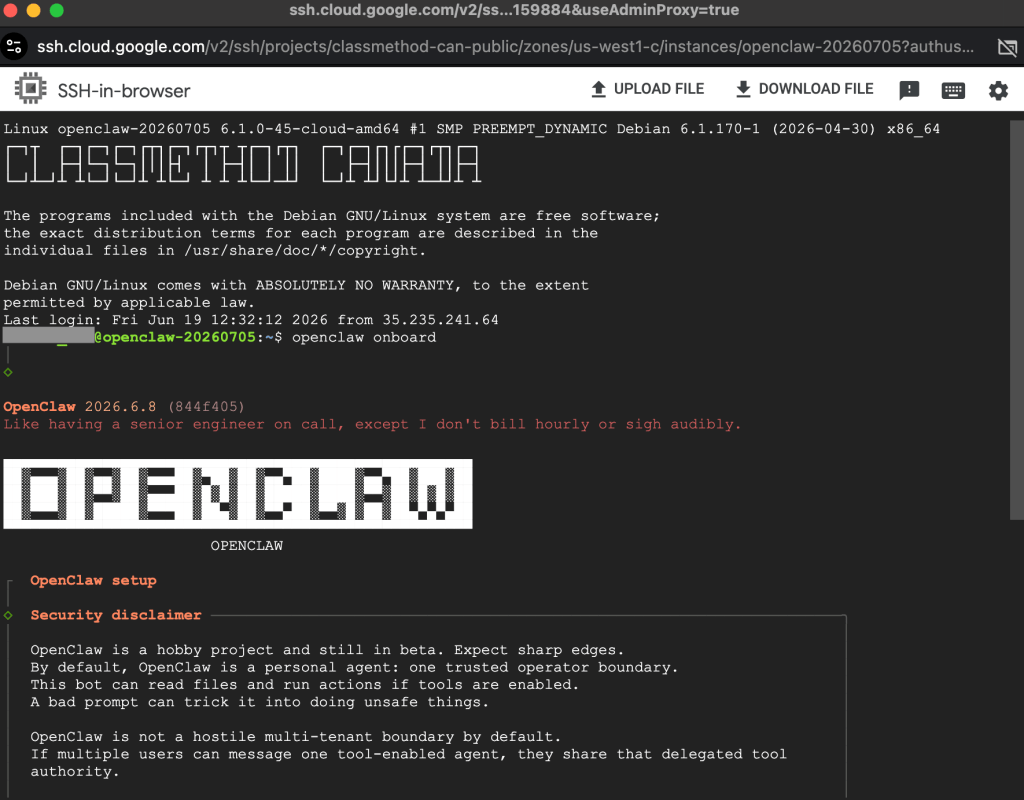
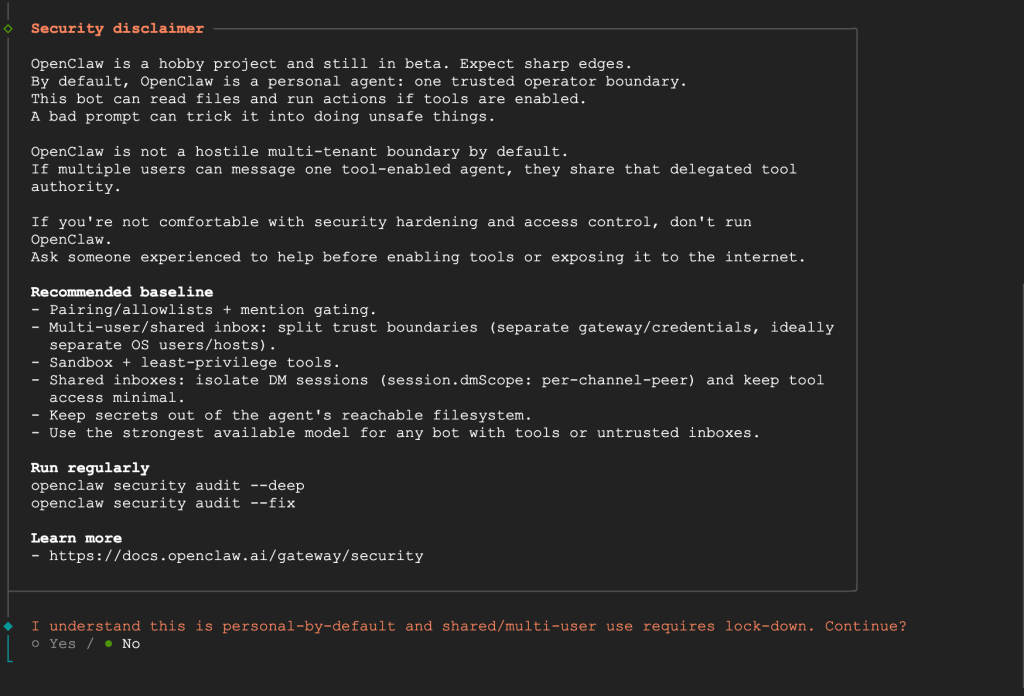
If onboarding is already complete, check the gateway mode:
openclaw config get gateway.modeIf needed, set it to local:
openclaw config set gateway.mode localThen start the gateway:
openclaw gateway start
openclaw gateway status
AI model selection
During onboarding, choose the model provider you want OpenClaw to use.
Free local model option
If you want to avoid API fees, use a local LLM provider such as Ollama, which OpenClaw supports.[docs.openclaw]
Example:
ollama pull qwen2.5:7bThen configure OpenClaw to use that local model in the onboarding flow or in your OpenClaw config.
API-based model option
If you prefer a cloud model, enter your provider API key during onboarding and select the model you want to use.
Telegram setup
OpenClaw supports Telegram as a chat channel.[docs.openclaw]
Create a Telegram bot
- Open Telegram and search for
@BotFather. - Send
/newbot. - Choose a bot name.
- Choose a username ending in
bot. - Copy the bot token that Telegram generates.
Connect Telegram to OpenClaw
During onboarding, select Telegram as the communication channel and paste the bot token when prompted.
If OpenClaw asks for user authorization or pairing, complete the pairing from Telegram and approve the connection.
Accessing the VM
You can SSH into the instance with:
gcloud compute ssh --zone "us-west1-a" rocky@vm-instance-name --project "projectname"If you need to access the web dashboard or any local service safely, use SSH tunneling.
Create SSH tunnel
gcloud compute ssh --zone "us-west1-a" rocky@vm-instance-name --project "projectname" -- -N -L 8080:localhost:3000Then open the local dashboard in your browser:
http://localhost:8080Runtime verification
After setup, confirm these items:
openclaw --version
openclaw config get gateway.mode
openclaw gateway status
Expected result:
- OpenClaw is installed.
- Gateway mode is
local. - Gateway is running.
- Telegram bot is connected.
- Selected model is available.